Tuesday, May 19, 2015

SAP - Hadoop data lab project on Raspberry PI.

Hadoop has developed into a key enabling technology for all kinds of Big Data analytics scenarios. Although Big Data applications have started to move beyond the classic batch-oriented Hadoop architecture towards near real-time architectures such as Spark, Storm, etc., [1] a thorough understanding of the Hadoop & MapReduce & HDFS principles and services such as Hive, HBase, etc. operating on top of the Hadoop core still remains one of the best starting points for getting into the world of Big Data. Renting a Hadoop cloud service or even getting hold of an on-premise Big Data appliance will get you Big Data processing power but no real understanding of what is going on behind the scene.

To inspire your own little Hadoop data lab project, this four part blog will provide a step-by-step guide for the installation of open source Apache Hadoop from scratch on Raspberry Pi 2 Model B over the course of the next three to four weeks. Hadoop is designed for operation on commodity hardware so it will do just fine for tutorial purposes on a Raspberry Pi. We will start with a single node Hadoop setup, will move on to the installation of Hive on top of Hadoop, followed by using the Apache Hive connector of the free SAP Lumira desktop trial edition to visually explore a Hive database. We will finish the series with the extension of the single node setup to a Hadoop cluster on multiple, networked Raspberry Pis. If things go smoothly and varying with your level of Linux expertise, you can expect your Hadoop Raspberry Pi data lab project to be up and running within approximately 4 to 5 hours.

We will use a simple, widely known processing example (word count) throughout this blog series. No prior technical knowledge of Hadoop, Hive, etc. is required. Some basic Linux/Unix command line skills will prove helpful throughout. We are assuming that you are familiar with basic Big Data notions and the Hadoop processing principle. If not so, you will find useful pointers in [3] and at: http://hadoop.apache.org/. Further useful references will be provided in due course.

Part 1 - Single node Hadoop on Raspberry Pi 2 Model B (~120 mins)
Part 2 - Hive on Hadoop (~40 mins)
Part 3 - Hive access with SAP Lumira (~30mins)
Part 4 - A Hadoop cluster on Raspberry Pi 2 Model B(s) (~45mins)
 
HiveServices5.jpg
 

Part 1 - Single node Hadoop on Raspberry Pi 2 Model B (~120 mins)


Preliminaries

To get going with your single node Hadoop setup, you will need the following Raspberry Pi 2 Model B bits and pieces:
  • One Raspberry Pi 2 Model B, i.e. the latest Raspberry Pi model featuring a quad core CPU with 1 GB RAM.
  • 8GB microSD card with NOOBS (“New Out-Of-the-Box Software”) installer/boot loader pre-installed (https://www.raspberrypi.org/tag/noobs/).
  • Wireless LAN USB card.
  • Mini USB power supply, heat sinks and HDMI display cable.
  • Optional, but recommended: A case to hold the Raspberry circuit board.

To make life a little easier for yourself, we recommend to go for a Raspberry Pi accessory bundle which typically comes with all of these components pre-packaged and will set you back approx. € 60-70.
RaspberryPiBundle.png
We intend to install the latest stable Apache Hadoop and Hive releases available from any of the Apache Software Foundation download mirror sites, http://www.apache.org/dyn/closer.cgi/hadoop/common/, alongside the free SAP Lumira desktop trial edition, http://saplumira.com/download/, i.e.
  • Hadoop 2.6.0
  • Hive 1.1.0
  • SAP Lumira 1.23 desktop edition

The initial Raspberry setup procedure is described by, amongst others, Jonas Widriksson athttp://www.widriksson.com/raspberry-pi-hadoop-cluster/. His blog also provides some pointers in case you are not starting off with a Raspberry Pi accessory bündle but prefer obtaining the hard- and software bits and pieces individually. We will follow his approach for the basic Raspbian setup in this part, but updated to reflect Raspberry Pi 2 Model B-specific aspects and providing some more detail on various Raspberry Pi operating system configuration steps. To keep things nice and easy, we are assuming that you will be operating the environment within a dedicated local wireless network thereby avoiding any firewall and port setting (and the Hadoop node & rack network topology) discussion. The basic Hadoop installation and configuration descriptions in this part make use of [3].

The subsequent blog parts will be based on this basic setup.
 

Raspberry Pi setup

Powering on your Raspberry Pi will automatically launch the pre-installed NOOBS installer on the SD card. Select “Raspbian”, a Debian 7 Wheezy-based Linux distribution for ARM CPUs, from the installation options and wait for its subsequent Installation procedure to complete. Once the Raspbian operating system has been installed successfully, your Raspberry Pi will reboot automatically and you will be asked to provide some basic configuration settings using raspi-config. Note that since we are assuming that you are using NOOBS, you will not need to expand your SD card storage (menu Option Expand Filesystem). NOOBS will already have done so for you. By the way, if you want or need to run NOOBS again at some point, press & hold the shift key on boot and you will be presented with the NOOBS screen.
 

Basic configuration

What you might want to do though is to set a new password for the default user “pi” via configuration optionChange User Password. Similarly, set your internationalisation options, as required, via optionInternationalisation Options.
BasicConfiguration Menu.png
More interestingly in our context, go for menu item Overclock and set a CPU speed to your liking taking into account any potential implications for your power supply/consumption (“voltmodding”) and the life-time of your Raspberry hardware. If you are somewhat optimistic about these things, go for the “Pi2” setting featuring 1GHz CPU and 500 MHz RAM speeds to make the single node Raspberry Pi Hadoop experience a little more enjoyable.
AdvancedOptions_Overclocking.png
Under Advanced Options, followed by submenu item Hostname, set the hostname of your device to “node1”.  Selecting Advanced Options again, followed by Memory Split, set the GPU memory to 32 MB.
AdvancedOptions_Hostname.png
Finally, under Advanced Options, followed by SSH, enable the SSH server and reboot your Raspberry Pi by selecting in the configuration menu. You will need the SSH server to allow for Hadoop cluster-wide operations.

Once rebooted and with your “pi” user logged in again, the basic configuration setup of your Raspberry device has been successfully completed and you are ready for the next set of preparation steps.
 

Network configuration

To make life a little easier, launch the Raspbian GUI environment by entering startx in the Raspbian command line.(Alternatively, you can use, for example, the vi editor, of course.) Use the GUI text editor, “Leafpad”, to edit the /etc/network/interfaces text file as shown to change the local ethernet settings for eth0 from DHCP to the static IP address 192.168.0.110. Also add the netmask and gateway entries shown. This is the preparation for our multi-node Hadoop cluster which is the subject of Part 4 of this blog series.
Ethernet2.png
Check whether the nameserver entry in file /etc/resolv.conf is given and looks ok. Restart your device afterwards.


Java environment

Hadoop is Java coded so requires Java 6 or later to operate. Check whether the pre-installed Java environment is in place by executing:
 
java –version

You should be prompted with a Java 1.8, i.e. Java 8, response.


Hadoop user & group accounts

Set up dedicated user and group accounts for the Hadoop environment to separate the Hadoop installation from other services. The account IDs can be chosen freely, of course. We are sticking here with the ID examples in Widriksson’s blog posting, i.e. group account ID “hadoop" and user account ID “hduser” within this and the sudo user groups.

     sudo addgroup hadoop
     sudo adduser –-ingroup hadoop hduser
     sudo adduser to group sudo
UserGroup2.png

SSH server configuration

Generate a RSA key pair to allow the “hduser” to access slave machines seamlessly with empty passphrase. The public key will be stored in a file with the default Name “id_rsa.pub” and then appended to the list of SSH authorised keys in the file “authorized_keys”. Note that this public key file will need to be shared by all Raspberry Pis in an Hadoop cluster (Part 4).
 
     su hduser
           mkdir ~/.ssh
     ssh-keygen –t rsa –P “”
     cat ~/.ssh/id_rsa.pub > ~/.ssh/authorized_keys
SSHKeys2.png

Verify your SSH server access via: ssh localhost

This completes the Raspberry Pi preparations and you are all set for downloading and installing the Hadoop environment.
 

Hadoop installation & configuration

Similar to the Rasbian installation & configuration description above, we will talkyou through the basic Hadoop installation first, followed by the various
environment variable and configuration settings.
 

Basic setup

You need to get your hands on the latest stable Hadoop version (here: version 2.6.0) so initiate the download from any of the various Apache mirror sites (here: spacedump.net).
 

Once the download has been completed, unpack the archive to a sensible location, e.g., /opt represents a typical choice.

     sudo mkdir /opt
     sudo tar –xvzf hadoop-2.6.0.tar.gz -C /opt/

Following extraction, rename the newly created hadoop-2.6.0 folder into something a little more convenient such as “hadoop”.

     cd /opt
     sudo mv Hadoop-2.6.0 hadoop

Running, for example, ls –al, you will notice that your “pi” user is the owner of the “Hadoop” directory, as expected. To allow for the dedicated Hadoop user “hduser” to operate within the Hadoop environment, change the ownership of the Hadoop directory to “hduser”.

     sudo chown -R hduser:hadoop hadoop

This completes the basic Hadoop installation and we can proceed with its configuration.
 

Environment settings

Switch to the “hduser” and add the export statements listed below to the end of the shell startup file ~/.bashrc. Instead of using the standard vi editor, you could, of course, make use of the Leafpad text editor within the GUI environment again.

     su hduser
     vi ~/.bashrc

Export statements to be added to ~/.bashrc:

     export JAVA_HOME=$(readlink -f /usr/bin/java | sed "s:bin/java::")
     export HADOOP_INSTALL=/opt/hadoop
     export PATH=$PATH:$HADOOP_INSTALL/bin:$HADOOP_INSTALL/sbin

This way both the Java and the Hadoop installation as well as the Hadoop binary paths become known to your user environment. Note that you may add the JAVA_HOME setting to the hadoop-env.sh script instead, as shown below.

Apart from these environment variables, modify the /opt/hadoop/etc/hadoop/hadoop-env.sh script as follows. If you are using an older version of Hadoop, this file can be found in: /opt/hadoop/conf/. Note that in case you decide to relocate this configuration directory, you will have to pass on the
directory location when starting any of the Hadoop daemons (see daemon table below) using the --config option.

     vi /opt/hadoop/etc/hadoop/hadoop-env.sh

Hadoop assigns 1 GB of memory to each daemon so this default value needs to be reduced via parameterHADOOP_HEAPSIZE to
allow for Raspberry Pi conditions. The JAVA_HOME setting for the location of the Java implementation may be omitted if already set in your shell environment, as shown above. Finally, set the datanode’s Java virtual machine to client mode. (Note that with the Raspberry Pi 2 Model B’s ARMv7 processor, this
ARMv6-specific setting is not strictly necessary anymore.)

     # The java implementation to use. Required, if not set in the home shell
     export JAVA_HOME=$(readlink -f /usr/bin/java | sed "s:bin/java::")

     # The maximum amount of heap to use, in MB. Default is 1000.
     export HADOOP_HEAPSIZE=250
     # Command specific options appended to HADOOP_OPTS when specified
     export HADOOP_DATANODE_OPTS="-Dcom.sun.management.jmxremote $HADOOP_DATANODE_OPTSi -client"
 

Hadoop daemon properties

With the environment settings completed, you are ready for the more advanced Hadoop daemon configurations. Note that the configuration files are not held globally, i.e. each node in an Hadoop cluster holds its own set of configuration files which need to be kept in sync by the administrator using, for example, rsync.

Modify the following files, as shown below, to configure the Hadoop system for operation in pseudodistributed mode. You can find these files in directory /opt/hadoop/etc/hadoop. In the case of older Hadoop versions, look for the files in: /opt/hadoop/conf
core-site.xml
Common configuration settings for Hadoop Core.

hdfs-site.xml
Configuration settings for HDFS daemons:
The namenode, the secondary namenode and the datanodes.

mapred-site.xml
General configuration settings for MapReduce
daemons
. Since we are running MapReduce usingYARN, the MapReduce jobtracker and tasktrackers are replaced with a single resource manager running on the namenode.
 
File: core-site.XML
     
    
          hadoop.tmp.dir
          /hdfs/tmp
    
    
          fs.default.name
          hdfs://localhost:54310


File: hdfs-site.xml


          dfs.replication
          1


File: mapred-site.xml.template ( “mapred-site.xml”, if dealing with older Hadoop versions)


          mapred.job.tracker
          localhost:54311


Hadoop Data File System (HDFS) creation

HDFS has been automatically installed as part of the Hadoop installation. Create a tmp folder within HDFS to store temporary test data and change the directory ownership to your Hadoop user of choice. A new HDFS installation needs to be formatted prior to use. This is achieved via -format.

     sudo mkdir -p /hdfs/tmp
     sudo chown hduser:hadoop /hdfs/tmp
     sudo chmod 750 /hdfs/tmp
     hadoop namenode -Format

Launch HDFS and YARN daemons

Hadoop comes with a set of scripts for starting and stopping the various daemons. They can be found in the /bindirectory. Since you are dealing with a single node setup, you do not need to tell Hadoop about the various machines in the cluster to execute any script on and you can simply execute the following scripts straightaway to launch the Hadoop file system (namenode, datanode and secondary namenode) and YARN resource manager daemons. If you need to stop these daemons, use the stop-dfs.sh and stop-yarn.sh script, respectively.

     /opt/hadoop/sbin/start-dfs.sh
     /opt/hadoop/sbin/start-yarn.sh

Check the resource manager web UI at http://localhost:8088 for a node overview. Similarly,http://localhost:50070 will provide you with details on your HDFS. If you find yourself in need for issue diagnostics at any point, consult the log4j.log file in the Hadoop installation directory /logs first. If preferred, you can separate the log files from the Hadoop installation directory by setting a new log directory in HADOOP_LOG_DIR and adding it to script hadoop-env.sh.
WebUI_NodeOverview2.png
With all the implementation work completed, it is time for a little Hadoop processing example.
 

An example

We will run some word count statistics on the standard Apache Hadoop license file to give your Hadoop core setup a simple test run. The word count executable represents a standard element of your Hadoop jar file. To get going, you need to upload the Apache Hadoop license file into your HDFS home directory.
 
     hadoop fs -copyFromLocal /opt/hadoop/LICENSE.txt /license.txt

Run word count against the license file and write the result into license-out.txt.
 
     hadoop jar /opt/hadoop-examples-2.6.0.jar wordcount /license.txt /license-out.txt

You can get hold of the HDFS output file via:
 
     hadoop fs -copyToLocal /license-out.txt ~/

Have a look at ~/license-out.txt/part-r-00000 with your preferred text editor to see the word count results. It should look like shown in the extract below.
WordCount_ResultExtract2.png

We will build on these results in the subsequent parts of this blog series on Hive QL and its SAP Lumira integration.
 
Part 2 - Hive on Hadoop (~40 mins)
Part 3 - Hive access with SAP Lumira (~30mins)
Part 4 - A Hadoop cluster on Raspberry Pi 2 Model B(s) (~45mins)
 
Part 2 - Hive on Hadoop (~40 mins)

Following on from the Hadoop core installation on a Raspberry Pi 2 Model B in Part 1 of this blog series, in this Part 2, we will proceed with installing Apache Hive on top of HDFS and show its basic principles with the help of last part's word count Hadoop processing example.

Hive represents a distributed relational data warehouse featuring a SQL-like query language, HiveQL, inspired by the MySQL SQL dialect. A high-level comparison of the HiveQl and SQL is provided in [1]. For a HiveQL command reference, see: https://cwiki.apache.org/confluence/display/Hive/LanguageManual.

The Hive data sits in HDFS with HiveQL queries getting translated into MapReduce jobs by the Hadoop run-time environment. Whilst traditional relational data warehouses enforce a pre-defined meta data schema when writing data to the warehouse, Hive performs schema on read, i.e., the data is checked when a query is launched against it. Hive alongside the NoSQL data warehouse HBase represent frequently used components of the Hadoop data processing layer for external applications to push query workloads towards data in Hadoop. This is exactly what we are going to do in Part 3 of this series when connecting to the Hive environment via the SAP Lumira Apache Hive standard connector and pushing queries through this connection against the word count output file.
 
HiveServices5.jpg
First, let us get Hive up and running on top of HDFS.
 
Hive installation
The latest stable Hive release will operate alongside the latest stable Hadoop release and can be obtained from Apache Software Foundation mirror download sites. Initiate the download, for example, from spacedump.net and unpack the latest stable Hive release as follows. You may also want to rename the binary directory to something a little more convenient.

cd ~/
wget http://apache.mirrors.spacedump.net/hive/stable/apache-hive-1.1.0-bin.tar.gz
tar -xzvf apache-hive-1.1.0-bin.tar.gz
mv apache-hive-1.1.0-bin hive-1.1.0

Add the paths to the Hive installation and the binary directory, respectively, to your user environment.

cd hive-1.1.0
export HIVE_HOME={{pwd}}
export PATH=$HIVE_HOME/bin:$PATH
export HADOOP_USER_CLASSPATH_FIRST=true

Make sure your Hadoop user chosen in Part 1 (here: hduser) has ownership rights to your Hive directory.

chown -R hduser:hadoop hive

To be able to generate tables within Hive, run the Hadoop start scripts start-dfs.sh and start-yarn.sh (see also Part 1). You may also want to create the following directories and access settings.

hadoop fs -mkdir /tmp
hadoop fs -chmod g+w /tmp
hadoop fs -mkdir /user/hive/warehouse
hadoop fs -chmod g+w /user/hive/warehouse

Strictly speaking, these directory and access settings assume that you are intending to have more than one Hive user sharing the Hadoop cluster and are not required for our current single Hive user scenario.

By typing in hive, you should now be able to launch the Hive command line interface. By default, Hive issues information to standard error in both interactive and noninteractive mode. We will see this effect in action in Part 3 when connecting to Hive via SAP Lumira. The -S parameter of the hive statement will suppress any feedback statements.

Typing in hive --service help will provide you with a list of all available services [1]:
cli
Command-line interface to Hive. The default service.
hiveserver
Hive operating as a server for programmatic client access via, for example, JDBC and ODBC. Http, port 10000. Port configuration parameter HIVE_PORT.
hwi
Hive web interface for exploring the Hive schemas. Http, port: 9999. Port configuration parameter hive.hwi.listen.port.
jarHive equivalent to hadoop jar. Will run Java applications in both the Hadoop and Hive classpath.
metastoreCentral repository of Hive meta data.

If you are curious about the Hive web interface, launch hive --service hwi, enter http://localhost:9999/hwi in your browser and you will be shown something along the lines of the screenshot below.
HWI.png

If you run into any issues, check out the Hive error log at /tmp/$USER/hive.log. Similarly, the Hadoop error logs presented in Part 1 can prove useful for Hive debugging purposes.


An example (continued)

Following on from our word count example in Part 1 of this blog series, let us upload the word count output file into Hive's local managed data store. You need to generate the Hive target table first. Launch the Hive command line interface and proceed as follows.

create table wcount_t(word string, count int) row format delimited fields terminated by '\t' stored as textfile;

In other words, we just created a two-column table consisting of a string and an integer field delimited by tabs and featuring newlines for each new row. Note that HiveQL expects a command line to be finished with a semicolon.
 
The word count output file can now be loaded into this target table.

load data local inpath '~/license-out.txt/part-r-00000' overwrite into table wcount_t;

Effectively, the local file part-r-00000 is stored in the Hive warehouse directory which is set touser/hive/warehouse by default. More specifically, part-r-00000 can be found in Hive Directoryuser/hive/warehouse/wcount_t and you may query the table contents.

show tables;
select * from wcount_t;

If everything went according to plan, your screen should show a result similar to the screenshot extract below.
 
ShowTables2.png

If so, it means you managed to both install Hive on top of Hadoop on Raspberry Pi 2 Model B and load the word count output file generated in Part 1 into the Hive data warehouse environment. In the process, you should have developed a basic understanding of the Hive processing environment, its SQL-like query language and its interoperability with the underlying Hadoop environment.
 
In the next part of this series, we will bring the implementation and configuration effort of Parts 1 & 2 to fruition by running SAP Lumira as a client against the Hive server and will submit queries against the word count result file in Hive using standard SQL with the Raspberry Pi doing all the MapReduce work. Lumira's Hive connector will translate these standard SQL queries into HiveQL so that things appear pretty standard from the outside. Having worked your way through the first two parts of this blog series, however, you will be very much aware of what is actually going on behind the scene.

Wednesday, April 22, 2015

SAP ECC6 - EHP7 Upgrade - Pitfalls.

EHP7 is packed with 750 business functions – about 650 accumulated from previous EHPs and 100 or so new business functions covering financial accounting, logistics, HR, QM and HANA.

The top 3 new functions are:
  • • SAP Fiori productivity apps
  • • High-speed MRP
  • • Real-time access to ERP data
Turn your EHP7 upgrade into a game changer that empowers the business side!

Here are 5 major pitfalls to avoid when upgrading to EHP7:

#1 – IT, Don’t Wait, Upgrade to EHP7 Now!

One in four companies using SAP perform an EHP upgrade due to a business driver such as supporting new business functionality, rollouts, and regulations. And this statistic is further supported when we take a look at the rate of adoption of EHP business functions.

Why upgrade to EHP7? In numbers:
  • • 35% – To stay current
  • • 33% – As part of ECC 6.0 upgrade
  • • 25% – Business driven
  • • 6% – Other
  • • 1% – Don’t know
#2 – Admit the Truth – EHP7 Upgrades are a Big Deal

First of all, let’s admit the truth – EHP upgrades are major projects. They are costly (time and money), risky (expect the unexpected) and disruptive in a negative way (3-7 month project duration). EHP7 introduces 1 million new ABAP programs containing 70 million (!!) lines of new code – a 50% increase in new code!

SAP also releases SUPPORT PACK STACKS on a regular basis. A SPS contains about 20,000 Notes. This means that if you are jumping a number of SPS’s, that is tens of thousands of notes to introduce at the same time. And our experience shows that typically only 2-4% of these notes will be relevant to you, but they will impact about 10-20% of your implementation. The million dollar question is – which are these notes, and what impact will they have on your system? Determining which of these changes will impact your system, and what the impact will be are two major challenges that you have to deal with.

#3 Like a Driver in the Rain, You Have Low Visibility

You have little visibility into what will break prior to upgrade. The challenge is to gain visibility into exactly what functionality will break ahead of the project. Don’t assume that because this is a technical upgrade that your Standard Transactions won’t be impacted by the EHP upgrade. Remember that there are thousands of notes released, many of which alter the behavior of standard transactions.

#4 Those @#^*! Satellite Systems

When upgrading to SAP EHP, one of the most painful pitfalls is forgetting to consider your impacted satellite systems. Assess the impact of the upgrade on all of the interfaces to your SAP. Chances are that you have many dozens, if not hundreds of integration points to your ERP. Are you familiar with them all? Did you consider which may break? You better.

#5 Involve Your Business Key Users

The easiest pitfall when upgrading to SAP EHP7 is not involving your business key users. You absolutely need their commitment to this massive project. Get them on-board as early as possible – especially in the test planning and test execution stages. Without cooperation and collaboration with the business, your project risks multiply.

Friday, March 20, 2015

SAP OS/DB Migration Successful Steps...!!!

1 Preparation Phase
2 Check if target OS, DB, R/3 release, language and code page is supported
3 Plan dates for GoingLive - Migration Check
4 Prepare project plan and signed contract "R/3 Migration Services" and send them to SAP
5 SAP approves migration and sends the migration tools and documentation
6 Request adaptation of the SAP license for the target system
7 Request installation package for the target system
8 Check if patches for the target operating and database system are available
9 Check if installation CDs, guides, and installation notes are available for the target system
10 Hardware installation of the target host and system network installation
11 Adapt operating system parameters on the target machine
12 Set up remote access to the source and target system
13 Determine customer migration ID (see "R/3 Heterogenous System Copy")
14 Analyze the source system
15 Distribution of file systems/raw devices on disks; NFS file systems, links, etc.
16 Database configuration (number of log files, size of tablespaces/dbspaces)
17 Configuration of the R/3 System, distribution of central instance and dialog instances
18 CCMS configuration (operation modes, profiles, etc.)
19 Interface to other applications/machines
20 Backup strategy
21 Batch jobs - which jobs are assigned to which host?
22 Methods of data archiving
23 Printer configuration
24 RFC configuration
25 Customer-specific adaptations for R/3 (scripts, data transfer from/to the R/3 System, etc.)
26 Additionally installed R/3 tools (sapcomm, ArchiveLink, SNA gateway, etc.)
27 Define for the target system:
28 which data/configuration has to be transferred to the target system
29 which additional tools have to be installed
30 which adaptations are to be done on the target system
31 of what size are file systems/raw devices/database
32 how will tables, tablespaces/dbspaces be distributed
33 new backup strategy
34 which patches are necessary for the operating system and the database system
35 Perform special consistency checks
36 If R3load method is used: check ABAP/4 Repository (Technical Settings) in the source system
37 Customer-specific modifications

Monday, December 22, 2014

SAP Post Installation Steps

SAP Post Installation Steps

Below are the steps needs to be performed as part of SAP post installation activities
1. Login to DDIC username and execute SICK TCode
2. Go to RZ10 TCode and import the new profiles and add profile parameters according to your requirements

3.Execute slicense and install license for your system

4. Go to SE06 and select Standard Installation option hit execute, Click yes to initialize your CTS settings
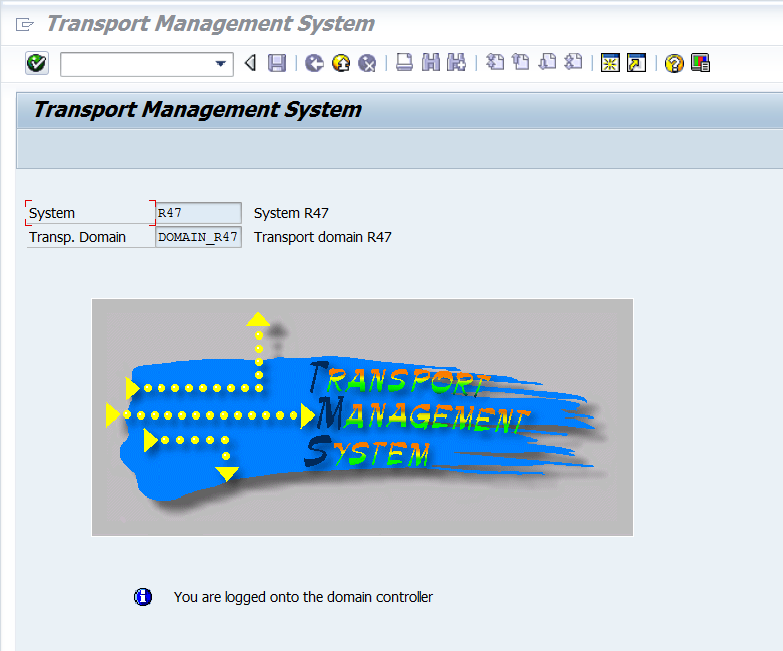
5. Now goto STMS tcode and configure TMS
 
6. You can configure current system as DC(domain controller) or you can include into another domain, in this case I configure as domain controller

7. Now install SGEN i.e SAP load generator
 

8. Now go to SCC4 tcode and create a new client and perform client copy

9. After you created new client and make sure you copy DDIC username and create new ADMIN username and LOCK SAP* and DDIC usernames
 
10. Additionally you need to perform SAP Kernal upgrade as well as patching for OS and DB and check official installation guide in market place.

Tuesday, July 22, 2014

How to Properly Size an 
SAP In-Memory Database...!!!

How to Properly Size an 
SAP In-Memory Database 
               
Use SAP Notes and Sizing Tools to Determine SAP HANA’s Hardware Requirements:
 
Many SAP customers are switching to SAP HANA to take advantage of its real-time analytics functionality and its ability to perform transactional processing at lightning speed. These capabilities open up an array of opportunities for the business, but to fully benefit, customers must correctly calculate the sizing requirements for SAP HANA to support the in-memory technique that drives its powerful performance, and to 
minimize future maintenance costs. 

This article provides SAP IT and business users with an overview of how to properly size for SAP HANA. It starts with an explanation of the key performance indicators (KPIs) used for SAP HANA sizing, and how sizing for SAP HANA is different from sizing for traditional databases. It then outlines the two different sizing approaches — initial sizing (for new solution implementations) and delta sizing (for changes to existing solution implementations) — supported by SAP, and how to apply these approaches when sizing for SAP HANA-based implementations.
Key Performance Indicators for SAP HANA Sizing
Sizing calculations for determining a system’s, solution’s, or database’s requirements are based on certain KPIs. The three main KPIs used to size for SAP HANA are memory space, CPU processing performance, and disk size.
Memory
While traditional sizing approaches focus on CPU performance, the main driver for SAP HANA sizing is memory. Because SAP HANA is a main memory database, essentially all business data (e.g., master and transactional data) resides in the main memory, which leads to a higher memory footprint compared to traditional databases. In addition to the main memory required for storing the business data, temporary memory space is needed to operate the database management system — to support complex queries or data that is needed for buffers and caches, for example.
CPU
Sizing for SAP HANA includes unique requirements for CPU processing performance. The CPU behaves differently with SAP HANA compared to traditional databases. The processing engine for SAP HANA is optimized to operate very complex queries at maximum speed, which means that many of these queries are processed internally and in parallel, and most of the data is stored in a column-based format. This architecture not only might lead to a higher CPU demand compared to traditional databases, it also requires planning for a lower average utilization to ensure that there is enough headroom for the database to process queries sufficiently fast.
Disk Size
An in-memory database still requires disk storage space — to preserve database information if the system shuts down, either intentionally or due to a power loss, for instance. Data changes in the database must be periodically copied to disk to ensure a full image of the business data on disk, and to preserve the current state of the database and all of the data entered in the persistence layer. In addition, a logging mechanism is required to log changes and enable system recovery. To accommodate these requirements, there always must be enough space on disk to save data and logs.

Let’s now take a look at the two main approaches that use these KPIs for sizing 
SAP environments: initial sizing and delta sizing.
Initial Sizing vs. Delta Sizing
SAP distinguishes between two types of sizing: initial sizing and delta sizing. With an initial sizing, the sizing is being done from scratch for the first time for a completely new installation of SAP software. With a delta sizing, there is a productive SAP solution already running, and the sizing is being performed for new functionality or a migration to a new database, for instance. SAP offers tools and methodologies, including support specific to SAP HANA, for both approaches.

Initial sizing is typically questionnaire-based, and addresses peak load and average load in terms of business processes, user numbers, and data retention times. For the most widely used solutions, this questionnaire takes the form of the web-based Quick Sizer tool, which is a free self-service cloud application (available at
service.sap.com/quicksizer) used by customers, partners, and SAP’s own consulting, sales, and support organizations in about 35,000 projects annually to help determine hardware needs for a variety of SAP offerings.1 The results of the questionnaire indicate the net disk space, main memory, IOPS, and CPU (measured in SAPS2) required for the implementation.3

To facilitate delta sizing, SAP provides database-specific scripts, ABAP reports, and SAP Notes. The reports estimate the maximum memory consumption of the database if migrated to SAP HANA.
Next, you’ll see how to perform proper initial and delta sizing for running SAP solutions on SAP HANA, using SAP Business Suite powered by SAP HANA as an example. I’ll also highlight some key considerations to keep in mind when performing sizing for SAP Business Warehouse (SAP BW) powered by SAP HANA and a standalone SAP HANA implementation. 
Initial Sizing for an SAP Business Suite Implementation on SAP HANA
For a new implementation of SAP Business Suite directly on SAP HANA, you can size your needs with the Quick Sizer tool. To facilitate SAP HANA sizing, Quick Sizer includes a section called “SAP In-Memory Computing” that provides sizing questionnaires tailored to different types of solutions (see Figure 1). To perform sizing for SAP Business Suite powered by SAP HANA, follow the guidelines provided in SAP Note 1793345. 
Quick Sizer questionnaires for SAP HANA sizing
Figure 1 — Quick Sizer questionnaires for SAP HANA sizing
Let’s walk through the steps required to use Quick Sizer for a new implementation of SAP Business Suite powered by SAP HANA.
 
Step #1: Create a New Project in Quick Sizer
Start Quick Sizer and create a new Quick Sizer project. Then complete the “SAP Business Suite powered by HANA” questionnaire. The questionnaire offers two different approaches for performing the sizing: user-based sizing, which determines sizing requirements based on the number of users in the system, and throughput-based sizing, which bases the sizing on the items being processed. The throughput-based approach is recommended, since it allows you to define more variables, such as business objects used, peaks and averages, and the retention times of the business data.

Figure 2 shows the specifications entered in Quick Sizer for an example throughput-based sizing performed for implementing the CRM Sales component of SAP Business Suite. In this example, the assumption is that three million sales orders with 10 line items will be processed each day from 9am to 6pm. It also indicates that business data remains in the database for 12 months (“Mon.”). These specifications determine the amount of data in the system that is driving the calculation of the main memory required for SAP HANA.
Specifications for an example throughput-based sizing using the Quick Sizer tool
Figure 2 — Specifications for an example throughput-based sizing using the Quick Sizer tool
Step #2: Get the Results and Apply the Sizing Rules
Click on the Calculate result button and Quick Sizer will determine the system resources required to support the new solution based on the entered parameters. Figure 3 shows the results for the example scenario. The results that are relevant for calculating the SAP HANA-
specific requirements are the estimated disk space (for calculating the memory requirements) and the estimated database SAPS (for calculating the CPU requirements).
Quick Sizer results for an example throughput-based sizing
Figure 3 — Quick Sizer results for an example throughput-based sizing

Using the Quick Sizer results, calculate the sizing requirements by applying the sizing rules for SAP Business Suite on SAP HANA that are outlined in SAP Note 1793345:
  • Calculate the memory requirements for SAP HANA using the estimated disk space (303 GB in the example). SAP’s current recommendation is to take half of the size of the disk-based database; include a safety buffer of 20%; and add 50 GB fixed size for code, stack, and other services. Using the example Quick Sizer results, this calculation would look like the following:
    • 303 GB / 2 * 1.2 + 50 GB = 
232 GB SAP HANA memory
  • Calculate the CPU requirements for SAP HANA using the estimated database SAPS (1,000 in the example). To fully support the parallel processing capabilities of SAP HANA and enable optimal response times for analytical applications, SAP recommends a factor of three to four times more CPU power for SAP HANA than for disk-based databases. Using the example Quick Sizer results, this calculation would look like the following:
    • 1,000 database SAPS * 4 = 
4,000 SAP HANA CPU SAPS
  • Calculate the disk space requirements for SAP HANA. For SAP Business Suite powered by SAP HANA, SAP recommends using half 
of the required disk space that is needed for SAP Business Suite for disk-based databases:
    • 303 GB / 2 = 151.5 GB SAP HANA disk space
Step #3: Get the Right Amount of Hardware
Once you have calculated the correct values for memory, CPU, and disk space to support your implementation needs, you can check 
for sample configurations at www.sap.com/benchmarks. You can also contact a trusted hardware vendor that can work with you to evaluate your sizing calculations to determine which of their offerings are suited to your configuration requirements.
Initial Sizing for Other Types of Solution Implementations on SAP HANA
In addition to sizing for an SAP Business Suite implementation on SAP HANA, the Quick Sizer tool can be used for the initial sizing of SAP BW powered by SAP HANA and the standalone SAP HANA product. To facilitate these types of implementations, the respective Quick Sizer questionnaires contain questions and algorithms specific to those particular scenarios.  

For an implementation of SAP BW powered by SAP HANA, the sizing procedure is analogous to sizing SAP BW systems for a traditional RDBMS environment. The Quick Sizer questionnaire enables you to specify the size of InfoCubes 
and Data Store Objects, along with average and peak load times, user groups, data upload information, and row and column footprints and compression, for example. The difference is that the results are converted into SAP HANA results by Quick Sizer automatically.

For a standalone SAP HANA implementation, the memory sizing is derived from the size of the tables in the source database. Only tables are considered for sizing purposes; space for elements such as indexes and temporary table spaces must be excluded. To obtain the correct size information from your source database, run the sizing script attached to SAP Note 1514966. Using this information, in the Quick Sizer 
questionnaire, enter the number of concurrent users, the source database footprint in GB, and the compression factor. Note that specifying the number of users is optional. If you enter a user number, Quick Sizer verifies that the CPU requirements are met by certified hardware configurations.

Next, I’ll look at how to perform a proper delta sizing for a solution migration to SAP HANA, again using SAP Business Suite as an example. I’ll also highlight some key considerations to keep in mind when migrating SAP BW to SAP HANA.
Delta Sizing for an SAP Business Suite Migration to SAP HANA
Performing delta sizing for SAP Business Suite powered by SAP HANA means that you are sizing for a migration of an already productive SAP Business Suite solution to SAP HANA, without changing the core business processes and without changing custom code. To facilitate this sizing for an SAP Business Suite migration, SAP Note 1872170 implements an ABAP report, which runs on non-SAP HANA systems, that estimates the memory space requirements for the database tables of SAP Business Suite 
powered by SAP HANA systems.

Let’s walk through the steps required to size for a migration to SAP Business Suite powered by SAP HANA.
Step #1: Run the Sizing Report
SAP Note 1872170 includes detailed instructions for running the ABAP-based sizing report. Be sure to read the FAQ document attached to the note.

The sizing report runs on SAP_BASIS 620 and above, and is independent of the source database provider. The report can be used for sizing all SAP Business Suite products as well as all SAP products that run on SAP NetWeaver (with the exception of SAP BW; more on this shortly). It analyzes the size and the data volume of all tables in the source database and estimates the memory space requirements by accounting for:
  • Distribution of tables to row/column store
  • De-clustering/de-pooling
  • Differences for secondary indexes
  • Compression of the legacy database 
and Unicode conversion (if a conversion 
is required)
Step #2: Interpret the Results of the 
Sizing Report
The sizing report estimates the maximum memory consumption that would be required to load the selected data in the memory of a server running SAP HANA just after the migration. Figure 4 shows the output of an example sizing report. Once you have checked the results and the plausibility, you can start analyzing the result.
Example sizing report output
Figure 4 — Example sizing report output
As you can see from the example, the maximum total memory requirements would be about 1,188 GB. The 50 GB fixed size for code, stack, and other services is already included. In contrast to the initial sizing method, which required a manual calculation, this calculation is performed automatically by the report.

This automatic calculation is not enough, however. To correctly size for the SAP HANA migration, you also need to anticipate the year-on-year growth. Let’s say that you anticipate 10% yearly growth for the next three years, for example. 
This leads to a factor of 1.33 (1.1^3). For more information, see the FAQ document attached to SAP Note 1872170.

Once the calculations are complete, you will know the required memory size of your machine.

Delta Sizing for Other Types of Solution Migrations to SAP HANA
In addition to supporting an SAP Business Suite migration to SAP HANA, SAP provides help with delta sizing for migrations to SAP BW powered by SAP HANA.

SAP BW powered by SAP HANA provides organizations with a solid data foundation to capture, store, transform, and manage data in a scalable, enterprise-ready data warehouse. An SAP BW system can be migrated from any database platform to the SAP HANA in-memory database. To facilitate this migration, SAP provides an ABAP-based sizing report that analyzes the data volume of existing SAP BW systems (based on data samples), including:
  • Obtaining a list of tables from the ABAP dictionary
  • Separating tables into row store and column store
  • Computing the overall SAP HANA memory requirements
This sizing report comes with SAP Note 1736976, which includes background infor­mation and documentation for how to run the report.
Sizing Prepares You for the Next Level
Sizing for SAP HANA is no more complicated than sizing for applications on traditional databases. SAP provides a range of tools and methodologies to guide this undertaking for standalone implementations of SAP HANA, as well as implementations of SAP Business Suite, SAP BW, and other applications that are based on SAP HANA.

With the right determination of the sizing KPIs and guidance provided by SAP, your organization will be able to benefit from the opportunities 
SAP HANA offers to take your business solutions to the next level.

Thursday, June 5, 2014

SAP BW 7.4 SP 05 on HANA.

SAP BW on HANA continues to evolve in order to meet the growing challenges imposed on IT by these ever changing market forces.
 
The release of SAP BW running on SAP HANA is a great example of how SAP BW has evolved to ensure organizations continue to leverage  their investment in SAP BW to meet these new  challenge.
 
Key features of SAP BW 7.4. SP 05 on HANA
 
◦Enhanced Data Modeling  
  • ◾Common Eclipse based Modeling Tools
  • ◾BW/HANA Smart Data Access providing the logical EDW
  • ◾Easy integration of external data models with Open ODS Layer
  • ◾Further reduce data layers in BW via Operational Data Provisioning
  • ◾New Composite Provider
  
◦Push down further processing logic to HANA
  • ◾BW Analytic Manager
  • ◾HANA  Analysis Processes
  • ◾BW Transformations
  • ◾PAK (Planning Application Kit) – Pushing down more planning semantics
       
How Does BW running on RDBMS differ from BW running on HANA ?
 
Excellent query performance for improved decision making
 
  • •Performance boost for Data Load processes for decreased data latency
  • •Accelerated In-Memory planning capabilities for faster planning scenarios
  • •Flexible combine EDW with HANA-native data for real-time insights and decision making
  • •Datapersistency layers are cut off and reduced administration efforts
  • •Simplified data modeling and remodeling
 
Characteristic Values > 60 Characters and Extra Long Texts

Extend length for Characteristics values
  • •The maximum output length and attribute length can be <= 250
250 characters applies for the total (compound) length of the key
 
Extra long texts for Characteristics
  • •Long text can be stored as CHAR 60 (standard) or CHAR 1333 (option‘Long text is XL’ set).
  • •No changes on frontends required
  • •Simple switch for existing Characteristics possible
 
BW Integrated Planning

Next level of performance by  pushing down further planning capabilities to HANA
  • •Possibility to implement HANA SQL Script  based user exits to be able to push down ABAP based user exits down to HANA
  • •Distribution of new planning records by key pushed down to HANA
  • •Additional planning functions – Physical delete of planning data records in DSOs rather than just zeroing-out facts
  • •Details about availability of already pushed down elements see SAP note 1637199
Combine the best of three worlds to a unique planning solution (HANA, BPC, BW-IP)

Combines the successful EPM Excel add-in
  • •flexible BPC admin-UI
  • •powerful BW-IP / PAK planning manager
  • •super-fast HANA planning engine
Selected features
  • •Full PAK-model compatibility
  • •Business process flows (BPF)
  • •Work-status
  • •Data auditing
  • •Easy upload scenario

Tuesday, June 3, 2014

Communication from EWM to SAP ERP...

Communication from Extended Warehouse Management (EWM) to SAP ERP uses defined interfaces, and enables distribution, changes to, and confirmation of delivery-relevant data.
In SAP ERP, the interfaces between EWM and SAP ERP are based on deliveries. In EWM, they are based on the following:

●  Inbound delivery notifications and inbound deliveries in the inbound delivery process

●  Outbound delivery orders and outbound deliveries in the outbound delivery process

Where necessary, SAP ERP triggers subsequent communication steps for specific processes.
For more information, see Warehouse Req. - Type Inbound Del. or Outbound Del. Order, Generating a Warehouse Request of the Inbound Delivery Type, Generating a Warehouse Request of Type Outbound Delivery Order.

Communication is asynchronous and uses queued Remote Function Call (qRFC) technology. This technology guarantees serialization of the messages.

INTEGRATION:

The following figure gives you an overview of the functions supported by the interfaces between EWM and SAP ERP:
This graphic is explained in the accompanying text

  1.  Distribution of deliveries
       ○  Send deliveries from SAP ERP to EWM
       ○  Send deliveries from EWM to SAP ERP (for example, for manual inbound deliveries)
  2.  Changes to deliveries
       ○  Send changes from EWM to SAP ERP (for example, confirmation of a pick denial from EWM to SAP ERP)
       ○  Send changes from SAP ERP to EWM (for example, changed ASN from vendor)
  3.  Confirmation of an inbound and outbound delivery split from EWM to SAP ERP
  4.  Send confirmation of deliveries from EWM for follow-on functions in SAP ERP (for example, goods receipt, goods issue, confirmation before goods issue for invoicing before goods issue)
Prerequisites
●  If you are using SAP ERP. Here, you define for each plant and storage location whether you manage your warehouse in a separate, decentralized EWM. EWM receives the requests for goods movements from SAP ERP.
●  Transmit all information to EWM that EWM requires for the goods movements. These include:
    ○  Partner master data (for example, customers, vendors, transportation service providers)
    ○  Location master data (for example, customers, vendors, plants)
    ○  Product master data
●  You have made the Customizing settings for integration with SAP ERP.
    In the Implementation Guide (IMG) for EWM, choose Interfaces → ERP Integration.
Features
    The following functions are available for EWM and SAP ERP for the purpose of processing inbound and outbound deliveries.
●  Processing of Inbound Deliveries
    ○  Receipt of an inbound delivery from SAP ERP to EWM
    ○  Receipt of a change request for inbound deliveries from SAP ERP to EWM
    ○  Notification of changed data before goods receipt from EWM to SAP ERP
    ○  Confirmation of a goods receipt from EWM to SAP ERP
    ○  Notification of a reversal or correction of the goods receipt from EWM to SAP ERP
    ○  Notification of an inbound delivery split from EWM to SAP ERP
●  Processing of Outbound Deliveries
    ○  Receipt of an unchecked outbound delivery from SAP ERP to EWM
    ○  Receipt of a checked outbound delivery from SAP ERP to EWM
    ○  Reporting of an outbound delivery change from EWM to SAP ERP
    ○  Quantity change request from EWM to SAP ERP
    ○  Confirmation of a goods issue from EWM to SAP ERP
    ○  Notification of a reversal of the goods issue from EWM to SAP ERP
    ○  Direct billing or invoicing before goods issue
    ○  Communication of an outbound delivery split from EWM to SAP ERP
For more information, see Processing of Inbound Deliveries, Processing of Outbound Deliveries, and Interfaces for Communication from EWM to SAP ERP.